
Dice+
Missing Link Dev
Dice+
Support Development
If you enjoy Dice+ and my other extensions, please consider supporting development on Patreon! Your support helps me continue creating and maintaining quality extensions for the Owlbear Rodeo community.
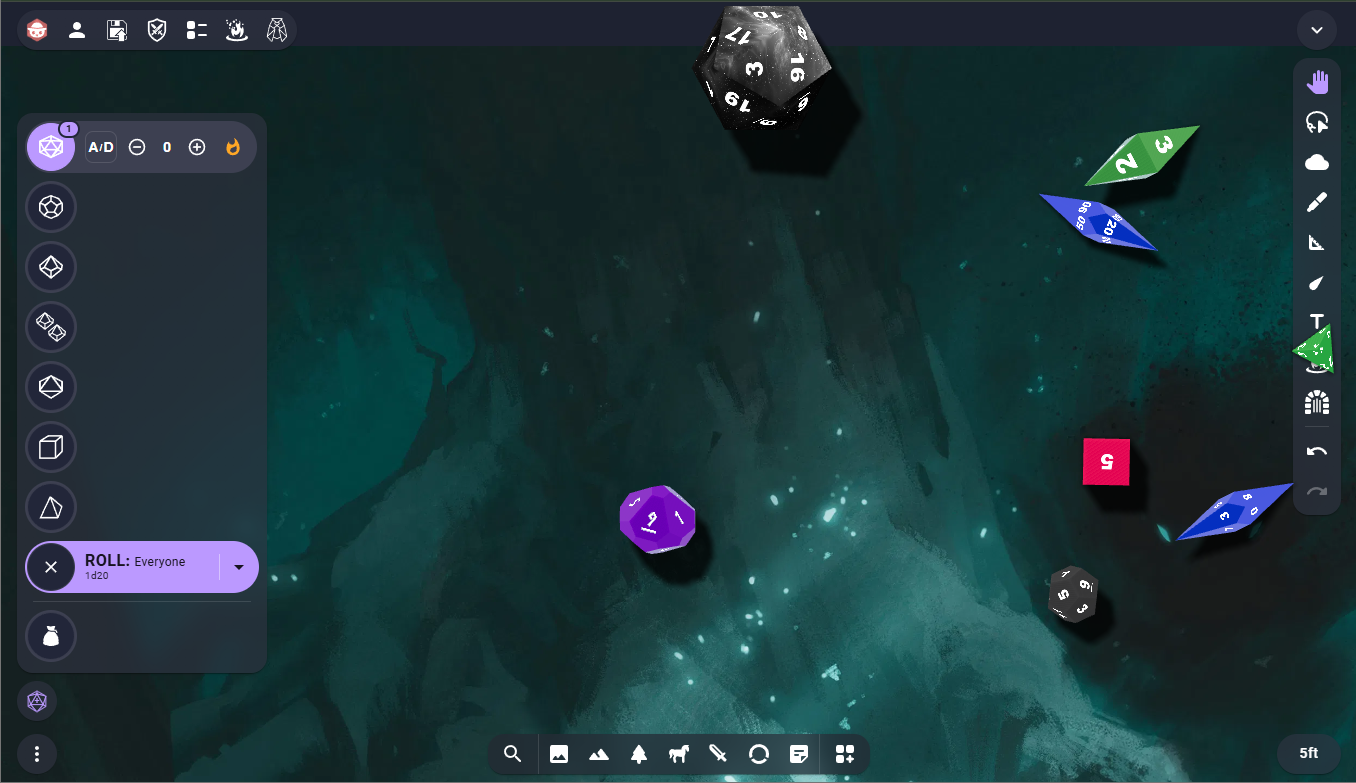
A feature-rich 3D dice roller extension for Owlbear Rodeo with deterministic physics, customizable dice, and advanced dice rolling capabilities. Roll your dice in beautiful 3D with realistic physics simulation while maintaining complete control over your dice collection and rolling options.
Table of Contents
Features
- 3D Physics-Based Dice Rolling: Realistic dice rolling with deterministic physics using Three.js and Rapier physics engine
- Customizable Dice: Create custom dice with unique colors, materials, sizes, and shapes
- Quick Roll Interface: Fast dice selection with intuitive left/right click controls
- Keyboard Roll Tool: Optional keyboard rolling with customizable dice and notation shortcuts, activated with R
- Advanced Dice Notation: Supports complex dice notation including advantage/disadvantage, exploding dice, re-rolls, min/max values, and more
- Dice Bag Management: Organize and manage your dice collection with filters, active/jailed states, and custom configurations
- Material System: Choose from Standard and Galaxy materials with extensive customization options
- Statistics Tracking: View detailed roll history and statistics for your dice
- Developer Integration: Broadcast channels for sending roll requests and receiving results from other extensions
Adding Dice
Add dice using quick roll buttons, the notation input, or the optional keyboard roll tool:
Quick Roll Buttons
The quick roll interface provides fast, visual dice selection with modifier controls:
-
Add/Subtract Dice
- Left click on a dice button to add one die of that type
- Right click on a dice button to subtract one die
-
Advantage/Disadvantage
- Left click the A/D button to add advantage (roll an extra die and keep the highest)
- Right click the A/D button to add disadvantage (roll an extra die and keep the lowest)
- Visual badges show the number of advantage or disadvantage dice applied
-
Modifiers
- Use the + and - buttons to adjust the modifier value (adds or subtracts from the final total)
- Modifiers range from -99 to +99
-
Exploding Dice
- Left click the flame icon to enable exploding dice (when a die rolls its maximum value, roll it again and add the result)
- Right click the flame icon to remove the exploding modifier
- Badge shows the maximum number of explosions allowed (up to 10)
Dice Notation Input
For more complex rolls, use the dice notation input field. This supports the full range of dice notation features (see Dice Notation Reference below).
Examples:
2d20kh1+5- Roll 2d20, keep highest, add 54d6dl1 # Ability Score- Roll 4d6, drop lowest, with label3d6{Fear} # Fire + 2d6{Hope} # Ice- Use specific dice models with descriptions(2d6, 1d12)kh1- Roll both, keep the higher total (see Grouped Rolls)1d12, 2d6, 2d20kh1- Roll all at once as independent results (see Multiple Rolls at Once)6#4d6dl1- Repeat the same roll six times (see Repeating a Roll)
Roll History Panel
Below the notation input, you'll find the Roll History Panel which automatically tracks your recent rolls:
- Quick Reroll: Click any notation in the history to instantly populate the input field
- Pin Favorites: Click the pin icon next to any notation to pin it
- Pinned rolls stay at the top of the list and won't be auto-cleared
- Maximum of 10 pinned notations
- Recent Rolls: Shows your last 20 unpinned rolls
- Toggle Help: Click the help icon (?) to switch between viewing your roll history and the notation help text
- Cloud Sync (Premium): Your dice bag, roll history, notation history, hotbars, and stats sync across devices. Each linked Owlbear Rodeo account on your premium subscription gets its own independent cloud-backed dataset — linking a second OBR account does not merge bags, and edits made on one linked account do not affect the others.
Tips:
- Pin your commonly used rolls (damage, attacks, ability checks) for instant access
- The history persists between sessions via local storage
Dice Bag
The Dice Bag is your dice collection management system where you can store, organize, and customize your dice.
Filters
Filter your dice collection by type and state:
Type Filters:
- Filter chips show D4, D6, D8, D10/D100, D12, and D20
- Click a filter chip to show only that dice type
- Click again to remove the filter and show all dice
- Multiple type filters can be active simultaneously
State Filter:
- Filter by dice state: All, Active, Available, or Jailed
- All - Shows all dice regardless of state (default)
- Active - Shows only dice in your active rotation
- Available - Shows only dice that can be called by name
- Jailed - Shows only dice that are excluded from rolls
- Use state filters to quickly manage specific groups of dice
Dice States: Active, Available, and Jailed
Dice in your bag can be in one of three states, giving you flexible control over your dice collection:
-
Active Dice: These dice are in your active rotation
- Quick roll buttons automatically cycle through active dice as you roll
- Tip: For Daggerheart, create two d12s (Hope/Fear) and only have those two active. Every roll will alternate between them, making it easy to track your Fear and Hope scores.
-
Available Dice: These dice are stored but can be called by name
- Not included in the automatic rotation for quick roll buttons
- Can be summoned by name using dice notation:
2d6{Fireball}will use the die named "Fireball" - Perfect for situational dice (special attacks, spells, conditional abilities)
- Will be used if no active dice and die type is used in notation
- Tip: Keep character-specific dice or special effect dice as "Available" so they don't clutter your quick rolls but are ready when you need them by name
-
Jailed Dice: Completely excluded from all rolls
- Not available for quick rolls or dice notation
- Useful for dice that aren't rolling well or for storing alternate character sets
- Tip: Create dice sets for different characters and jail/activate them to quickly switch between character loadouts
Rolling Logic:
When you roll dice (via quick buttons or notation):
- Active dice are used first - The system cycles through your active dice in order
- If no active dice exist, the system checks for available dice and uses those
- If no active or available dice exist, the roll uses instant calculation (math.random) instead of physics simulation
Quick Roll Button Visibility:
Quick roll buttons only appear when you have at least one active die of that type. If all your d6s are "Available" or "Jailed", the d6 quick roll button will be hidden. This keeps your UI clean and only shows the dice you want in your active rotation.
The dice bag enforces a maximum capacity of 50 total dice (active + available + jailed combined). Unlimited Dice capacity for Premium users (see Patreon for upgrade)
Creating and Editing Dice
Click the "Add Dice" button to create new dice with custom properties:
Dice Type Selection
Choose the dice type Set (creates all dice type with same settings), D4, D6, D8, D10, D12, D20.
Name
Give your dice a custom name to easily identify them in your collection.
Preview
Real-time 3D preview of your dice with the selected shape, material, and settings.
Shape Selection
Choose the physical shape for your die:
- Each dice type supports multiple geometric shapes (e.g., D6 can be a cube or alternative shapes)
- The shape affects the visual appearance and rolling physics
Size Selection
Adjust the dice size from 25% to 300% of the standard size
Material Selection
Choose from multiple material types with extensive customization options. Each material provides unique visual effects and properties:
Standard Material - A physically-based material with realistic lighting and surface properties:
- Color: Base color of the dice body
- Font Color: Color of the numbers on the dice
- Number Depth (0.0-1.0): How deeply the numbers are engraved into the surface
- Roughness (0.0-1.0): Surface roughness (0 = mirror-like, 1 = matte)
- Metalness (0.0-1.0): Metallic appearance (0 = non-metallic, 1 = fully metallic)
- Sheen (0.0-1.0): Soft sheen/glow effect on the surface
Galaxy Material (Premium Only) - A stunning cosmic material with animated star fields:
- Font Color: Color of the numbers
- Number Depth (0.0-1.0): How deeply the numbers are engraved
- Primary Color: Primary color of the galaxy nebula
- Secondary Color: Secondary color blended into the galaxy
- Star Density (0.5-1.5): How many stars appear in the galaxy effect
- Brightness (0.0-2.0): Overall brightness of the galaxy effect
More material types coming soon!
Dice Stats and Log
View detailed statistics and history for your dice:
- Roll history showing all past rolls
- Statistical analysis of roll outcomes
- Distribution charts showing roll frequencies
- Individual die performance tracking
Sharing Dice
Share your custom dice with other players in your game session. There are two ways to share dice:
Direct Sharing within Owlbear Rodeo
Send dice directly to other connected players:
- Open the Dice Bag (both sender and receiver must have their dice bags open)
- Click the three-dot menu on any dice card you want to share
- Select "Share" from the menu
- Choose a recipient from the list of connected players, or select "Copy to Clipboard" for manual sharing
Important Notes:
- The receiving player must have their dice bag open to receive the shared dice
- Premium materials require premium subscription - If you try to share dice with a premium material to a non-premium user, they will not be able to accept it
- Dice bag capacity limits apply - Free users can store up to 50 dice. If the receiver's dice bag is full, they cannot accept new dice
Copy to Clipboard Sharing
Share dice settings as JSON that can be pasted:
- Click the three-dot menu on any dice card
- Select "Share" → "Copy to Clipboard"
- A dialog will appear with the JSON settings - manually select and copy the text (Ctrl+C or Cmd+C)
- Share the JSON with other players (Discord, chat, etc.)
To receive dice from clipboard:
- Open your Dice Bag
- Click the Paste icon (clipboard icon) in the header next to the close button
- Paste the JSON into the dialog and click "Confirm"
- The dice will be validated and added to your bag if compatible
Validation:
- Premium materials can only be received by premium users
- Dice bag must not be at capacity (50 dice limit for free users)
- JSON must contain valid dice settings
Sharing dice is perfect for:
- Standardizing dice across your party
- Sharing custom themed dice sets
- Distributing character-specific dice (Fear/Hope, special abilities, etc.)
- Helping new players get started with pre-configured dice
Custom Font Packs (Premium)
Upload your own dice number atlases. Build a font in the in-app Number Generator, export it as a font pack .zip, then upload it from any dice's Font Type picker. The pack becomes available on every die you create or edit, and other players in the room see your custom font on dice you roll.
Pack format
A font pack is a .zip containing three 1024×1024 PNGs:
numbers<suffix>.png— main number atlas (used by every die except d100 tens and Fate/Fudge)numbers10x<suffix>.png— d100 tens digitsnumbersFudge<suffix>.png— Fate/Fudge symbols
The optional <suffix> matches the Filename suffix field in the Number Generator (e.g. _norse); leave it blank for plain numbers.png/numbers10x.png/numbersFudge.png. The Number Generator's Download All (ZIP) button produces this layout automatically.
Limits
- Premium account required
- 1 MB per zip
- 50 packs per user
Managing packs
Packs you uploaded appear under the Custom group inside the Font Type dropdown. Use Manage fonts… in the same dropdown to delete a pack — dice that referenced it revert to Standard.
When you share a die that uses a custom font, the recipient sees the die with the Standard font instead, since custom fonts are private to the uploader.
App Settings
Access App Settings from the gear icon in the dice bag header. Settings are saved automatically to local storage and persist between sessions.
Keyboard Roll Tool
Enable App Settings → Keyboard rolling → Enable hotkey tool, then Save. This setting is off by default. Once enabled, press R or click the Dice+ tool in the OBR toolbar to start a keyboard roll.
The action panel opens in notation mode with pins/history collapsed, preserving your normal layout preference. Focus moves into the panel, not the notation input, so assigned dice shortcuts are handled there instead of activating OBR tools. Click the notation field whenever you want to type or edit ordinary dice notation; shortcut expansion pauses while you edit.
Default hotkeys (case-insensitive):
| Label | Notation | Hotkey |
|---|---|---|
| D4 | d4 |
A |
| D6 | d6 |
S |
| D8 | d8 |
D |
| D10 | d10 |
F |
| D12 | d12 |
G |
| D20 | d20 |
H |
| D100 | d100 |
J |
| Keep highest | kh1 |
K |
| Drop highest | dh1 |
L |
| Minimum | min |
M |
| Maximum | max |
X |
| Reroll | r |
Q |
Building a roll:
- Type
3a+5oraaa+5to enter3d4+5. - A matching dice shortcut increments the trailing dice term, keeping its modifiers. For example,
hkkhproduces2d20kh2: the final H increases the d20 count even afterkh2. - A different dice shortcut adds another term:
asproduces1d4+1d6. An explicit operator starts a new term, soh+2hproduces1d20+2d20. - Repeated K or L presses increase the keep/drop count. The opposite key reduces it, removes it at zero, then switches direction. For example,
hhkklproduces2d20kh1. - Type numbers and operators directly, including
+,-,*,/, parentheses, and comparisons. Explode uses the literal!:a!>3produces1d4!>3. Follow min/max or reroll shortcuts with parameters as needed. - Backspace deletes one character from the expanded notation. Hold-to-repeat is ignored; tap a dice key for each additional die.
Finishing a roll: Press Enter to roll to the audience shown on the roll button. The panel waits until the roll has been sent before closing and restoring the previous tool. Invalid notation or a send failure stays available for correction or retry. Press Escape to cancel before sending; closing the panel or choosing another tool also ends an unsubmitted roll. Once sending starts, it is allowed to finish.
Customizing hotkeys: Expand Hotkeys below the toggle to edit bindings. The compact list labels built-ins by name and custom entries as Custom1, Custom2, and so on. Choose Add custom hotkey, enter the notation fragment to insert and its letter, then Save. Custom fragments insert literally. Clear a default key to free its letter, remove custom rows with their × button, or use Reset to restore the defaults. Duplicate letters, R, numbers, operators, and editing controls cannot be assigned. These settings are saved in your browser.
Popover Layout
Sets how the dice popover that opens from the toolbar is laid out. Pick an option using the layout previews.
| Option | Description |
|---|---|
| Vertical | Tall column of dice — options expand to the side of each die (default) |
| Horizontal | Wide row of dice — options expand below each die |
| Input Only | Just the dice notation field, with no quick dice buttons |
| Hotbar | Your saved rolls, one tap each |
Horizontal is the same layout turned a quarter turn and read the other way around: the dice bag leads the row, the roll button follows it, and the dice run left to right ending with the d20. Each die's advantage/modifier/explosion controls drop down beneath it, and the roll button's label reads top to bottom.
Text input mode returns to the portrait window in every layout, with the roll button below the notation field.
Input Only stays on the notation field permanently — there are no dice buttons to switch back to. The clear button empties the field instead of leaving notation mode, and the roll button is held disabled until the field holds a valid notation.
Hotbar
The Hotbar layout replaces the quick dice buttons with your own saved rolls. If you roll the same handful of things all session — an attack, its damage, a saving throw — each one becomes a single button.
The row reads left to right: the dice bag, the roll target and the notation toggle, then a divider, then your hotkeys, with the panel carousel at the far end. Everything left of the divider is the app; everything right of it is your own rolls.
Creating a hotkey. Press the + in the row. A window opens over the map with three fields:
- Name — shown in the hotkey's tooltip alongside its notation. "Attack", "Stealth", "Fireball".
- Dice Notation — any notation the notation field accepts, validated as you type. Save stays disabled until it is valid.
- Icon — one of the dice icons, picked from a grid. This is what the button shows, so pick one you will recognise at a glance.
- Colour — a swatch to tint the icon with. Colour is the fastest way to tell a row of hotkeys apart at a glance: red for damage, green for healing, blue for saves. The icon grid draws in the colour you pick, so it doubles as a preview.
Each panel holds up to 10 hotkeys. Right-click a hotkey (or long-press on touch) to open it for editing, where it can also be deleted. Hovering a hotkey shows its name and notation.
Reordering. Drag a hotkey along the row to move it; the others step aside to show where it will land. Works with a mouse or by touch. A tap still rolls — the drag only starts once you have actually moved the hotkey.
Panels. The carousel at the end of the row pages between panels: the arrows step through them, wrapping at either end, and the number between them shows which panel you are on. Click that number to manage panels — add, rename, delete, share, or jump straight to one. Up to 10 panels, and the last one cannot be deleted. One panel per character, or one per combat role.
Sharing a panel. A whole panel can be handed to the other people in your room, so a GM can set up a monster's attacks once and give them to whoever is running it, or a player can pass their character's rolls to someone covering for them.
In the panel manager, press the share icon on a panel and choose who gets it:
- A player — sent to that one person.
- Everyone — offered to everyone else in the room.
- Copy as text — puts the panel on your clipboard as a block of text you can send through chat, a document, or to a room you are not in. The recipient pastes it with Import.
The recipient sees a window with the sender's name and every hotkey in the panel — its icon, colour, name and notation — and chooses Accept or Decline. Nothing is added until they accept, and accepting adds it as a new panel; their existing panels are never overwritten. If a panel by that name is already there, the copy gets a number.
Offers arrive whether or not the recipient has Dice+ open, and queue up if several land at once. A panel cannot be accepted once you are at 10 panels — delete one to make room. Sharing a panel shares the rolls, not the dice: the recipient's own dice bag styling is what they will see when the hotkeys roll.
Roll target. The person icon next to the dice bag sets who sees the rolls: Everyone, Self, GM & Self, or GM Only. It applies to every hotkey in the bar, and is remembered between sessions.
Ad-hoc rolls. The notation toggle next to the roll target opens the usual dice notation field, so anything not worth saving as a hotkey is still one tap away. Clearing it returns to the hotbar.
All of the hotbar's editing happens in a window that floats over the map rather than inside the toolbar popover — the hotbar is a single row tall, so a menu or dialog inside it would be cut off.
Hotkeys are saved to local storage and persist between sessions. Premium users have them backed up to the cloud and synced across devices, alongside roll history and notation history.
Keep Notation Open
Off by default. When enabled, rolling from the dice notation input clears the field but stays on it, ready for the next notation, instead of closing back to the dice buttons.
The Input Only layout always behaves this way, since it has no dice buttons to return to.
Keep Last Modifier
Off by default. Normally a roll clears the dice buttons completely, including the modifier set on each die. When enabled, every die keeps the modifier it was last rolled with, so rolling the same bonus again is a single click.
The memory is per dice type: the d20 remembers its own modifier, the d12 its own, and rolling one never disturbs another. Dice left out of a roll keep whatever they were already holding.
A carried modifier stays hidden until you pick that die up again — a modifier on a die with no count adds nothing to a roll. Roll a die back at zero to forget its modifier, or press Clear to forget them all at once.
Sound
Toggle dice sound effects on or off.
Roll Timestamp
Off by default. When enabled, the roll results panel shows the time of each roll (including seconds) right-aligned on the header row.
Roll Settle Time
Controls how quickly rolled dice come to rest after being thrown. Adjusts the physics of the roll — gravity, damping, and throw force all scale together so dice still cross the tray regardless of the setting.
| Option | Description |
|---|---|
| Very Fast | Dice slam down and stop almost immediately |
| Fast | Dice settle quickly with minimal bounce |
| Normal | Standard settle time — the default feel |
| Slow | Dice bounce and roll longer before stopping |
| Very Slow | Dice float, bounce, and spin for a long time |
Dice Clear Delay
Controls how long your own rolls remain visible on the tray before auto-clearing. Ranges from 1 to 10 seconds. This applies only to your own rolls — other players' rolls clear on their own schedule.
Performance Mode
Controls how other players' dice are rendered on your screen. Does not affect your own dice.
| Option | Description |
|---|---|
| Normal | Show all dice materials from other players |
| Default Dice Only | Show simplified dice for other players (better performance) |
| Results Only | Skip dice animations for other players entirely — show results only (best performance) |
Dice Notation Reference
Dice+ uses a dice notation system compatible with Roll20 and RPG Dice Roller, with some extensions and variations.
Basic Rolls
d20- Roll a single d202d6- Roll two six-sided dice1d8+5- Roll a d8 and add 53d6-2- Roll three d6 and subtract 2
Modifiers
Advantage/Disadvantage (Keep/Drop High/Low)
Keep Operators - Keep specified dice, drop the rest:
2d20kh1- Roll 2d20, keep highest 1 (advantage)2d20kl1- Roll 2d20, keep lowest 1 (disadvantage)4d6kh3- Roll 4d6, keep highest 3 (common for ability score generation)
Drop Operators - Drop specified dice, keep the rest:
2d20dl1- Roll 2d20, drop lowest 1 (same as keep highest - advantage)2d20dh1- Roll 2d20, drop highest 1 (same as keep lowest - disadvantage)4d6dl1- Roll 4d6, drop lowest 1 (keep highest 3)
Tip: Keep/drop can also apply to whole rolls instead of individual dice —
(2d6, 1d12)kh1rolls both and keeps the higher total. See Grouped Rolls.
Chaining Keep/Drop
Keep/drop operators can be chained. They apply in the order written, each step operating only on the dice still kept by the previous step:
4d10dh1kh1- Drop the highest, then keep the highest of the remaining 3. Rolling [2, 4, 5, 9] drops the 9 first, then keeps the 5.4d10kh3kl1- Keep the highest 3, then keep the lowest of those. Rolling [2, 4, 5, 9] keeps [4, 5, 9], then results in 4.6d6dl2dh1kh2- Drop the 2 lowest, drop the highest, keep the highest 2 of what's left.
Each step is validated against the dice remaining at that point in the chain:
khN/klNneeds at least N dice remaining —2d10kh3is invalid.dhN/dlNmust leave at least one die —4d10dh4is invalid, and so is4d10dh3kh2(only 1 die remains afterdh3).
With exploding dice, position in the chain matters:
2d6!kh1- Explosions join the pool as separate dice before the keep. Rolling [1, 6] where the 6 explodes into a 2 gives a pool of [1, 6, 2] →kh1keeps 6.2d6!!kh1- Compounding merges explosions into the original die first: [1, 6+2] →kh1keeps 8.2d6kh1!- The keep resolves over the original dice only; explosion dice then follow their parent die (kept parent → explosion counts, dropped parent → explosion is dropped).
Note: Re-rolls (
r,ro,rh,rl),min/max, and unique (u) always resolve while the dice are rolling, before any keep/drop is applied — their position in the chain doesn't change that. Matching explode (!m) supports a single keep/drop operator and cannot be combined with a chain.
Min/Max
1d20min10- Result cannot be less than 101d20max15- Result cannot be more than 15
Exploding
Exploding dice re-roll when they hit their maximum value and add the new roll to the total:
Basic Exploding:
1d6!or1d6e- Explode on 6 (implicit max value)1d6!6- Explode on 6 (explicit single value)1d6!6:3- Explode on 6, maximum 3 explosions1d6!>4- Explode on any value greater than 4
Multiple Values (Comma-Separated):
1d6!1,6- Explode on 1 or 61d6!1,6:2- Explode on 1 or 6, maximum 2 explosions
Compounding (!!):
Compounding explosions combine all explosion rolls into a single die value instead of adding separate dice:
4d6!!- Explode on 6, sum all explosions into one die (e.g., [4, 6+6+2] → [4, 14!!])3d6!!kh1- Compound on 6, keep highest (e.g., [4, 6+6+2, 3] → [4, 14!!, 3] → keep 14!!)
Note: Exploding dice spawn new dice dynamically during the roll, which causes timing-dependent physics behavior that cannot be perfectly synchronized between clients. Remote viewers may see slightly different animations, but the roller's broadcasted results are always the source of truth.
Matching Explode
Matching explode triggers when multiple dice in a group show the same value. Instead of checking each die individually, it checks if N dice match — then rolls one additional die per matching group. If the new die also matches the original value, it chains.
Basic Matching Explode:
2d10!m- If both d10s show the same value, roll 1 extra d103d10!m3- All 3 must match to trigger (match count = 3)2d10!m:2- Match explode, max 2 chain explosions
With Selectors (filter which values can match):
2d10!m>5- Only values greater than 5 can form a match3d10!m3>=4:2- 3 dice must match on a value ≥4, max 2 explosions
Multiple Match Groups:
If multiple distinct matching groups exist, each group triggers its own explosion. For example, 4d6!m rolling [3, 3, 5, 5] would spawn 2 explosion dice — one for the 3s and one for the 5s.
Chaining: When a matching explosion die lands on the same value that originally matched, it chains and spawns another explosion die (up to the max explosion limit).
With Advantage/Disadvantage:
When combined with keep/drop operators (e.g., 3d10kh2!m), explosion dice only count toward the matching group's total. The system evaluates all possible kept-dice combinations and picks the best (advantage) or worst (disadvantage) total. For example, 3d10kh2!m rolling [2, 2, 7] with explosion [8] would compare: keeping {2, 2} + explosion 8 = 12 vs keeping {7, 2} = 9, and choose 12.
Validation:
The dice count must be at least the match count. 2d10!m3 is invalid because you can't match 3 dice with only 2.
Note: Matching explode dice spawn dynamically like regular exploding dice, so remote viewers may see slightly different animations.
Re-Roll
Re-roll dice that meet certain conditions:
Basic Re-Roll:
1d20r- Re-roll on 1 (implicit minimum, infinite)1d20ro- Re-roll once on 11d20r1- Re-roll on 1 (explicit single value)1d20r<5- Re-roll on any value less than 51d6r6:3- Re-roll on 6, maximum 3 re-rolls
Multiple Values (Comma-Separated):
1d20r1,2- Re-roll on 1 or 21d8r1,2,7,8- Re-roll on extreme values
Note: Re-roll modifiers replace dice dynamically during the roll, which causes timing-dependent physics behavior that cannot be perfectly synchronized between clients. Remote viewers may see slightly different animations, but the roller's broadcasted results are always the source of truth.
Target Success / Dice Pool
Some systems use dice pools where you count successes (dice meeting a condition) rather than summing values.
How It Works:
- Place the compare point immediately after the dice (before operators):
5d10>=8 - Each die that meets the condition counts as 1 success
- Total = number of successes (not sum of values)
Basic Dice Pools:
5d10>=8- Count dice that rolled 8 or higher2d6=6- Count only exact rolls of 64d3>1- Count dice greater than 14d3<2- Count dice less than 26d10<=4- Count dice 4 or lower2d6<>4- Count dice not equal to 4 (use<>, not!=)
With Failures:
Add an f modifier to count failures that subtract from successes:
4d6>4f<3- Success: >4, Failure: <3- Total = (successes) - (failures)
Display Format:
5d10>=8: [2, 4, 6*, 3, 8*] = 2-*marks successes4d6>4f<3: [2_, 5*, 4, 5*] = 1-_marks failures
Combining with Other Operators:
Dice pools work with other operators:
5d10>=8!- Dice pool with exploding dice (explode on max)5d10>=8r1- Dice pool with reroll 1s
Operator Order Matters:
5d10>=8- Dice pool (count ≥8 as successes)5d10!>=8- Exploding dice (explode on ≥8, sum values)5d10>=8!- Dice pool + explosions (count ≥8, explode on 10)
Important Notes:
- Compare point MUST be immediately after
XdYfor dice pools - If compare point follows
!orr, it's the selector for that operator - Failure modifier
fmust follow a success condition - Use
<>for "not equal", not!=
Examples:
2d6=6: [4, 6*] = 1                   // only 6 is a success
4d3>1: [1, 3*, 2*, 1] = 2            // >1 is a success
4d3<2: [1*, 3, 2, 1*] = 2            // <2 is a success
5d8>=5: [2, 4, 6*, 3, 8*] = 2        // ≥5 is a success
6d10<=4: [7, 2*, 10, 3*, 3*, 4*] = 4 // ≤4 is a success
4d6>4f<3: [2_, 5*, 4, 5*] = 1        // 2 successes - 1 failure = 1
5d10>=8!: [2, 4, 6*, 3, 8*, 10*, 7*] = 4  // Pool with explosion
Reroll Highest / Lowest
Reroll the N highest or lowest dice after all dice have settled. Unlike r/ro (which reroll individual dice as they land), rh/rl rank all dice together and reroll the selected ones.
Notation: rh[count][condition][:maxIterations] / rl[count][condition][:maxIterations]
count- Number of dice to target (default: 1 if omitted)condition- Optional: only reroll if the targeted die meets this condition:N- Optional: maximum number of rerolls per targeted die
Examples:
3d6rh- Roll 3d6, reroll the highest die once3d6rh2- Roll 3d6, reroll the two highest dice once each3d6rl- Roll 3d6, reroll the lowest die once3d6rl1<3- Roll 3d6, reroll the lowest die only if it rolled less than 33d6rl1<3:2- Roll 3d6, reroll the lowest die if < 3, up to 2 times
Behavior:
- Without a condition: the targeted die(s) are always rerolled exactly once
- With a condition: the targeted die is rerolled while its value still matches the condition (up to maxIterations)
Note: Rank rerolls wait for all dice in the group to settle, then physically despawn and re-throw the targeted dice — just like
r/rorerolls. The results are calculated deterministically so all players see the same final values.
Unique (Coming Soon)
4d6u- Roll 4d6, all results must be unique4d6uo- Roll 4d6 unique, unlimited re-rolls to ensure uniqueness
Advanced Operators
Dice Model Selection
Assign specific dice from your dice bag by name:
2d6{Red}- Use dice named "Red" from your d6 dice bag1d12{Fear}+1d12{Hope}- Use "Fear" and "Hope" dice- If the named die doesn't exist, falls back to normal cycling through active dice
Roll Descriptions/Labels
Add descriptive labels to your rolls using the # symbol. The # can appear immediately after a dice roll or at the end of the full expression:
3d6 #Fire damage- Label attached directly to a dice roll3d6-1 #Fire damage- Label at the end of a full expression (after math)(3d6-1)+(3d6-2) #Attack roll- Label after a parenthesized expression3d6 #Fire + 2d6 #Ice- Multiple rolls with per-roll descriptions1d20+5#ToHit, 1d8+3#Damage- One label per roll in a comma-separated list(1d6+1#Sword, 1d8+2#Axe)kh1- One label per entry in a grouped roll
When # appears directly after XdY (before any operators or math), it labels that specific dice group. When # appears after the full expression it labels the entire roll — and in a comma-separated list or a grouped roll, it labels the entry it follows.
A label runs to the end of the notation, stopping at a math operator (+, -, *, /), a comma, or the ) that closes a group it sits inside. So a label cannot itself contain those characters: write #Fire damage, not #Fire, cold damage.
A # always follows what it labels, so it never clashes with the repeat shorthand, where the # comes before the expression it repeats: 6#4d6dl1 #Ability scores repeats 4d6dl1 six times and labels them.
Combined Features
All features can be combined for powerful roll expressions:
3d6{Red} # Fire damage + 2d6{White} # Frost damage- Models and descriptions2d20dl1{Red} # Attack with advantage- Drop lowest with model and description4d6dh1 # Ability Score- Drop highest with description
Mathematical Operations
Dice+ supports standard mathematical operations with proper operator precedence:
Multiplication and Division:
2*2d6- Roll 2d6 and multiply the result by 22d6*2- Roll 2d6 and multiply the result by 22d6/2- Roll 2d6 and divide the result by 2 (rounded down)2d6+5*10- Roll 2d6 and add 50 (5×10 is evaluated first)
Parentheses for Order of Operations:
2*(2d6+2d8)- Roll 2d6 and 2d8, sum them, then multiply by 2(4d6kh3)*2- Roll 4d6 keep highest 3, then multiply the result by 2(2d6+5)*3- Roll 2d6, add 5, then multiply the total by 3(3d6-1)+(3d6-2)- Two separate d6 groups each with their own modifier
Operator Precedence (standard math rules):
- Parentheses
()- Evaluated first - Multiplication
*and Division/- Evaluated left to right - Addition
+and Subtraction-- Evaluated left to right
Display Format:
2*2d6with rolls [4, 4] → Display:2*[4, 4] 8 = 162d6+5*10with rolls [3, 4] → Display:[3, 4] 7+50 = 572*(2d6+2d8)with rolls [4,4]+[3,7] → Display:2*([4, 4] 8+[3, 7] 10) = 36
Complex Expressions
Dice notation supports complex mathematical expressions:
2d20 + 1d6 + 5- Multiple dice types in one roll2d20kh1 + 1d4- Combine advantage with additional dice-1d4- Negative dice (subtract the result)3d6!1,6 # Wild Magic- Explode on 1 or 6 with description2d20kh1 + 1d6!5,6 + 3- Advantage with exploding damage dice2d8*2 # Doubled damage- Multiply dice results with description(1d6+1d8)*2 + 5- Complex expression with parentheses
Arbitrary Dice
Use d{values} to assign custom integer results to each face, following AnyDice's arbitrary dice notation. Entries stay in the order written; repeated values give that result more chances to occur.
| Notation | Description |
|---|---|
d{0,0,0,1,1,2} |
A d6: faces 1–3 score 0, faces 4–5 score 1, and face 6 scores 2 |
2d{1..6} + 3 |
Two dice with faces 1, 2, 3, 4, 5, 6, plus 3 |
d{-2..2,5} |
A d6 with values −2, −1, 0, 1, 2, 5 |
d{10,20,30,40,50} |
Five equally likely results, resolved by the random fallback |
Ranges include both endpoints and increase by 1. Lists must be nonempty and contain integers or ascending ranges. The expanded face count selects the physical die model when available (including the usual paired d10s for 100 faces); other counts use the existing random fallback.
Note: Physical face labels
Physical dice retain their usual face labels, while results and totals use the custom values.
Arbitrary dice support counts, arithmetic, and grouped rolls. Per-die operators (keep/drop, reroll, explode, min/max, and success comparisons) are not supported.
Fudge Dice (dF Notation)
For Fate / Fudge system games. dF (or df) rolls a six-sided die showing two +, two blank, two - faces. Each die contributes −1, 0, or +1 to the total.
| Notation | Description | Result Range |
|---|---|---|
dF / 1dF |
One Fudge die | −1 to +1 |
4dF |
Four Fudge dice (standard Fate ladder) | −4 to +4 |
4dF + 2 |
Four Fudge dice with a +2 skill modifier | −2 to +6 |
1d20 + 1dF |
Mixed roll | varies |
Mapping: Each Fudge die is physically a d6. Faces 1 and 4 → −1; faces 2 and 5 → 0; faces 3 and 6 → +1. The visible glyph on the die is + / blank / -.
Restrictions: Fudge dice support only count and arithmetic (+, -, *, /). Operators like ! (explode), kh/kl (keep), r (reroll), and dice pool comparisons are not allowed on dF.
Dicebag preview: When editing a d6 in the dice bag, a "Show as Fudge die (preview)" toggle previews the Fudge texture without changing the saved die. Rolling Fudge always uses dF notation.
Table Roll Notation (T Notation)
Use T followed by digits to roll multiple dice as place values — perfect for rolling on lookup tables in TTRPGs like Warhammer, OSR games, and others that use "roll on a D66 table" style mechanics.
Each digit after T specifies the die type for that place (hundreds, tens, ones, etc.):
| Notation | Dice Rolled | Result Range |
|---|---|---|
T66 |
d6 (tens) + d6 (ones) | 11 – 66 |
T88 |
d8 + d8 | 11 – 88 |
T468 |
d4 + d6 + d8 | 111 – 468 |
T1000 |
d10 + d10 + d10 | 1 – 1000 |
T108 |
d10 (tens) + d8 (ones) | 1 – 98 |
T6666 |
four d6s | 1111 – 6666 |
Special digit rules:
10as a consecutive pair → d10 (e.g.,T108= d10 for tens, d8 for ones)0alone (not at start) → d10 (e.g.,T1000= three d10s)- Single digits
1–9→ die with that many sides (e.g.,T66= two d6s)
d10 convention: When a d10 shows 10, it counts as 0 for the place value — the same convention as percentile dice. For all-d10 table rolls, a result of all-zeros equals the maximum (e.g., T1000 with three 10s → 1000, T100 with two 10s → 100).
Examples:
T66— Roll on a Warhammer-style 36-entry table (results: 11, 12, ..., 66)T1000— Roll on a 1000-entry table (same as three d10s / d1000)T468— Roll on a custom 64-entry table with varied dice
Table rolls can be combined with math modifiers:
T66+10— Table roll result plus 10T66 Magic Item— Named table roll
Grouped Rolls
Roll several complete rolls at once and keep or drop whole results by their totals. Wrap comma-separated rolls in parentheses and add a group operator after the closing parenthesis:
| Notation | Meaning |
|---|---|
(2d6, 1d12)kh1 |
Roll both; keep the higher total |
(2d6, 1d12, 1d8)kh2 |
Keep the two highest totals and add them |
(2d6, 1d12)kl1 |
Keep the lower total |
(2d6, 1d12, 1d8)dh1 |
Drop the highest total, add the rest |
(2d6, 1d12, 1d8)dl1 |
Drop the lowest total, add the rest |
(2d6, 1d12)+5 |
No operator inside math: totals are simply added |
- Every die rolls physically — dice from dropped rolls stay visible but grayed out.
- Each entry is a full roll: operators and math work inside, e.g.
(1d4r<1, 1d6r<1, 2d8r<1)kh1or(2d6+3, 1d12)kh1+5. - Entries can be labelled with
#, e.g.(1d6+1#Sword, 1d8+2#Axe)kh1. - The number after the operator is optional and defaults to 1 (
kh=kh1). - If totals tie, the roll written first wins.
- Groups cannot be nested inside other groups.
- A bare parenthesized list with no group operator that is the whole notation, e.g.
(2d6, 1d12), is treated as a multi-roll — each entry becomes its own independent result. - One quirk: a plain number directly after an operator value list is read as part of the list — in
(1d6r1,2, 3)kh1the3joinsr1,2. Reorder the entries ((3, 1d6r1,2)kh1) or write3+0.
Multiple Rolls at Once
Separate complete rolls with commas (no group operator) to roll them all together while keeping each result independent. All dice hit the tray at the same time, and the results panel shows one row per roll — each with its dice values, notation, and its own total.
| Notation | Meaning |
|---|---|
1d12, 2d6, 2d20kh1 |
Three independent rolls, one row each |
2d20kh1+5, 2d20kh1+3, 2d20kh1+4 |
Three attack rolls with different bonuses |
(2d20kh1+5, 2d20kh1+3) |
Same — outer parentheses are optional |
1d20+7, (2d6, 1d12)kh1 |
An attack plus a grouped damage roll as separate results |
- Each entry supports the full notation syntax: operators, math, tags, table rolls, and grouped rolls.
- There is no combined grand total — every row stands on its own.
- Roll history stores the whole multi-roll as one entry; rerolling repeats all of it.
- To label a row, end it with
#Label(e.g.1d20+5#ToHit, 1d8+3#Damage); the label appears next to that row's notation. A#placed directly after the dice (1d20#Attack+7, 2d6#Damage) still labels just that dice group and shows next to its values. - For extensions using the broadcast API:
totalin the roll-result message is the sum of all rows; per-row values can be recomputed fromgroupsand the notation, androllSummarylists each row as... = totalsegments separated by|, each prefixed withLabel:when the row is labelled.
Repeating a Roll
Write X# in front of an expression to roll it X times. It is pure shorthand: 6#4d6dl1 is identical to typing 4d6dl1, 4d6dl1, 4d6dl1, 4d6dl1, 4d6dl1, 4d6dl1, right down to the six independent result rows.
| Notation | Meaning |
|---|---|
6#4d6dl1 |
Classic stat generation: six ability scores |
3#1d20+5 |
Three separate attack rolls |
2#1d20, 1d8 |
Two d20 rows plus a d8 row — repeats mix freely with commas |
4#T66 |
Roll four times on the same table |
(3#1d6)kh1 |
Three d6 as a grouped roll: keep the highest |
- The repeated expression can be anything a comma entry can be: operators, math, tags, descriptions, table rolls, and grouped rolls.
- The count must sit directly against the
#(6#4d6dl1, not6 # 4d6dl1), which is what keeps it distinct from a#label. - A description on the repeated roll is repeated too:
6#4d6dl1 #Ability scorelabels every row. - Repeat counts run from 1 to 100. Remember the dice all spawn at once —
20#8d6is 160 dice in the tray.
Extension Integration
Dice+ provides broadcast channels for integration with other Owlbear Rodeo extensions using the OBR Broadcast API.
Ready Check Channel
Before sending roll requests, external extensions can check if Dice+ is loaded and ready to accept requests.
Channel: dice-plus/isReady
How It Works:
- Your extension sends a ready check request on the
dice-plus/isReadychannel - Dice+ automatically responds on the same channel when it's ready
- Your extension listens for the response to confirm Dice+ is available
Request Message Structure:
{
  requestId: string;      // Unique request identifier (to match responses)
  timestamp: number;      // Request timestamp
}
Response Message Structure:
{
  requestId: string;      // Matches the request requestId
  ready: true;            // Always true when Dice+ responds
  timestamp: number;      // Response timestamp
}
Example:
import OBR from "@owlbear-rodeo/sdk";

async function checkDicePlusReady(): Promise<boolean> {
  const requestId = crypto.randomUUID();

  return new Promise((resolve) => {
    const unsubscribe = OBR.broadcast.onMessage("dice-plus/isReady", (event) => {
      const data = event.data;

      // Check if this is a response (not a request)
      if ('ready' in data && data.requestId === requestId) {
        unsubscribe();
        resolve(true);
      }
    });

    // Send ready check request
    OBR.broadcast.sendMessage("dice-plus/isReady", {
      requestId,
      timestamp: Date.now()
    }, { destination: 'ALL' });

    // Timeout after 1 second if no response
    setTimeout(() => {
      unsubscribe();
      resolve(false);
    }, 1000);
  });
}

// Use it before sending roll requests
const isDicePlusReady = await checkDicePlusReady();
if (!isDicePlusReady) {
  console.error("Dice Plus extension not found!");
  return;
}
Notation Validation Channel
Check whether a dice notation string is valid before sending a roll request. No dice are rolled and nothing is logged to stats or history — this is a pure parse check.
Channel: dice-plus/validate-notation
How It Works:
- Your extension sends a validation request on the
dice-plus/validate-notationchannel - Dice+ validates the notation with its parser and responds on the same channel
- Requests and responses share the channel — responses are the messages that carry a
validfield - In a multi-client room every Dice+ client responds; results are identical, so match on
requestIdand use the first response
Request Message Structure:
{
  requestId: string;      // Unique request identifier (to match responses)
  notation: string;       // The dice notation to validate (e.g. "4d6kh3+2")
  timestamp: number;      // Request timestamp
}
Response Message Structure:
{
  requestId: string;      // Matches the request requestId
  notation: string;       // The notation from the request, echoed back
  valid: boolean;         // Whether the notation parsed successfully
  error?: {               // Present only when valid is false
    message: string;      // Human-readable parse error
    position: number;     // 0-based character index where parsing failed
  };
  timestamp: number;      // Response timestamp
}
Example:
import OBR from "@owlbear-rodeo/sdk";

async function validateNotation(notation: string): Promise<{ valid: boolean; error?: string }> {
  const requestId = crypto.randomUUID();

  return new Promise((resolve) => {
    const unsubscribe = OBR.broadcast.onMessage("dice-plus/validate-notation", (event) => {
      const data = event.data;

      // Check if this is a response (not a request)
      if ('valid' in data && data.requestId === requestId) {
        unsubscribe();
        resolve({ valid: data.valid, error: data.error?.message });
      }
    });

    // Send validation request
    OBR.broadcast.sendMessage("dice-plus/validate-notation", {
      requestId,
      notation,
      timestamp: Date.now()
    }, { destination: 'ALL' });

    // Timeout after 1 second if no response
    setTimeout(() => {
      unsubscribe();
      resolve({ valid: false, error: "Dice+ did not respond" });
    }, 1000);
  });
}

const check = await validateNotation("4d6kh3+2");
if (!check.valid) {
  console.error("Invalid notation:", check.error);
}
Roll Request Channel
Other extensions can send dice roll requests to Dice+ using the broadcast channel.
Channel: dice-plus/roll-request
Message Structure:
{
  rollId: string;           // Unique roll identifier (save this to match results)
  playerId: string;         // OBR player ID
  playerName: string;       // Player display name
  rollTarget: 'everyone' | 'self' | 'dm' | 'gm_only';  // Who sees the roll
  diceNotation: string;     // Standard dice notation (e.g., "2d20kh1+5")
  showResults: boolean;     // Show default popup (false = handle in your UI)
  timestamp: number;        // Request timestamp
  source: string;           // Your extension identifier (e.g., "my-extension-id")
}
Important Notes:
- source field: Must be your extension's unique identifier. This is used to create dedicated result and error channels for your extension.
- Result channels: Results are sent to your dedicate channel:
{source}/roll-result- Your extension's dedicated channel
- Error channel: Errors will be sent to
{source}/roll-error - Stats & History: ALL rolls (internal and external) are automatically logged to Dice+ stats and history to be viewed in dice bag stats panel no matter the source of the roll and to track dice statistics
- Popup behavior:
- Internal rolls always show the Dice+ popup
- External rolls show popup only if
showResults: true
Roll Targets:
'everyone'- All players see the dice roll and results'self'- Only the roller sees the dice and results'dm'(GM/Self) - Both the GM and the roller see the dice and results'gm_only'(GM Only) - Only the GM sees the dice and results. The roll always executes on the GM's screen regardless of who initiated it. The original player's identity is preserved in the result.
Example:
import OBR from "@owlbear-rodeo/sdk";

const MY_EXTENSION_ID = "my-extension-id"; // Use your extension's unique identifier
const rollId = `roll_${Date.now()}_${Math.random().toString(36).substring(2, 9)}`;

// Send roll request
await OBR.broadcast.sendMessage("dice-plus/roll-request", {
  rollId,
  playerId: await OBR.player.getId(),
  playerName: await OBR.player.getName(),
  rollTarget: 'everyone',
  diceNotation: '2d20kh1+5',
  showResults: false,  // Handle results in your own UI
  timestamp: Date.now(),
  source: MY_EXTENSION_ID  // Use your extension ID
}, { destination: 'ALL' });

// Listen for results on YOUR extension's channel
OBR.broadcast.onMessage(`${MY_EXTENSION_ID}/roll-result`, (event) => {
  const result = event.data;
  // Handle your roll result
  if (result.rollId === rollId) {
    console.log("Roll complete:", result.result.totalValue);
  }
});

// Listen for errors on YOUR extension's channel
OBR.broadcast.onMessage(`${MY_EXTENSION_ID}/roll-error`, (event) => {
  const error = event.data;
  if (error.rollId === rollId) {
    console.error("Roll failed:", error.error);
  }
});
Roll Result Channel
Dice+ sends roll results to source-specific broadcast channels.
Channel: {source}/roll-result (where {source} is the value you provided in the roll request)
Message Structure:
{
  rollId: string;           // Matches the request rollId
  playerId: string;         // Who rolled
  playerName: string;       // Display name
  rollTarget: 'everyone' | 'self' | 'dm' | 'gm_only';  // Roll target
  timestamp: number;        // Original timestamp
  result: {
    rollId: string;         // Roll identifier
    diceNotation: string;   // Original notation
    totalValue: number;     // Final sum (correctly handles *, /, ())
    rollSummary: string;    // E.g., "2d6+3 = 11" or "2*[4,4] 8 = 16"
    groups: DiceGroup[];    // Grouped results by notation order
  };
}

// DiceGroup structure
interface DiceGroup {
  description?: string;     // E.g., "Fire" from "# Fire"
  diceModel?: string;       // E.g., "Red" from "{Red}"
  diceType: string;         // E.g., "d6", "d20"
  dice: DiceResult[];       // Individual dice in this group
  total: number;            // Total of kept dice in this group
  isNegative?: boolean;     // Whether this group is subtracted
  isCondensed?: boolean;    // True when the group was condensed (see below)
  condensedCount?: number;  // Original dice count before condensation
}
Message size limit: OBR caps broadcast messages at 64KB. If a roll result would exceed that (very large rolls or many multi-roll rows), Dice+ condenses each group to a single aggregate entry —
dicecontains one item whosevalueis the group total, withisCondensed: trueandcondensedCountset. Group totals andtotalValueare always preserved.
Complete Example with Data:
Example 1: Advantage with Subtraction - 2d20kh1-1d4 (advantage on d20, subtract 1d4):
const MY_EXTENSION_ID = "my-extension-id";

// Request sent
const rollId = 'roll_1760043220783_abc123';
await OBR.broadcast.sendMessage("dice-plus/roll-request", {
  rollId,
  playerId: '81e7413f-920c-4639-bd9d-1895ac156cf1',
  playerName: 'Gandalf',
  rollTarget: 'everyone',
  diceNotation: '2d20kh1-1d4',
  showResults: false,
  timestamp: 1760043220783,
  source: MY_EXTENSION_ID  // Your extension ID
}, { destination: 'ALL' });

// Result received on channel: my-extension-id/roll-result
{
  rollId: 'roll_1760043220783_abc123',
  playerId: '81e7413f-920c-4639-bd9d-1895ac156cf1',
  playerName: 'Gandalf',
  rollTarget: 'everyone',
  timestamp: 1760043220783,
  result: {
    rollId: 'roll_1760043220783_abc123',
    diceNotation: '2d20kh1-1d4',
    totalValue: 15,                    // Final result: 18 - 3 = 15
    rollSummary: '[18] 18 - 3 = 15',  // Human-readable summary
    groups: [
      {
        diceType: "d20",
        dice: [
          { diceId: 'dice_001', rollId: 'roll_abc123', diceType: 'd20', value: 18, kept: true },
          { diceId: 'dice_002', rollId: 'roll_abc123', diceType: 'd20', value: 7, kept: false }
        ],
        total: 18,                      // Total of kept dice only (18)
        isNegative: false
      },
      {
        diceType: "d4",
        dice: [
          { diceId: 'dice_003', rollId: 'roll_abc123', diceType: 'd4', value: 3, kept: true }
        ],
        total: 3,
        isNegative: true                // This group is subtracted
      }
    ]
  }
}
Understanding the Results:
groupsorganizes all dice into their notation groups - even single dice get their own group- Each group includes ALL dice rolled for that group (both kept and dropped dice)
- Each group's
dicearray contains all dice with akeptflag indicating if they count toward the total - Each group's
totalfield is the sum of only the kept dice in that group totalValueis the final calculated result after all modifiers- For
2d20kh1-1d4: rolled 18 and 7 on the d20s (kept 18), rolled 3 on the d4, final: 18 - 3 = 15
Example 2: Multiplication - 2*2d6 (roll 2d6 and multiply by 2):
// Result received on channel: my-extension-id/roll-result
{
  rollId: 'roll_1760043220783_xyz789',
  playerId: '81e7413f-920c-4639-bd9d-1895ac156cf1',
  playerName: 'Gandalf',
  rollTarget: 'everyone',
  timestamp: 1760043220783,
  result: {
    rollId: 'roll_1760043220783_xyz789',
    diceNotation: '2*2d6',
    totalValue: 16,                      // Final result: 2 * 8 = 16
    rollSummary: '2*[4, 4] 8 = 16',     // Shows the multiplication
    groups: [
      {
        diceType: "d6",
        dice: [
          { diceId: 'dice_001', rollId: 'roll_xyz789', diceType: 'd6', value: 4, kept: true },
          { diceId: 'dice_002', rollId: 'roll_xyz789', diceType: 'd6', value: 4, kept: true }
        ],
        total: 8,                         // Total of dice (4 + 4 = 8)
        isNegative: false
      }
    ]
  }
}
Example 3: Descriptions and Dice Models - 3d6{Red} # Fire + 2d6{White} # Ice:
// Result received on channel: my-extension-id/roll-result
{
  rollId: 'roll_1760043220783_xyz789',
  playerId: '81e7413f-920c-4639-bd9d-1895ac156cf1',
  playerName: 'Gandalf',
  rollTarget: 'everyone',
  timestamp: 1760043220783,
  result: {
    rollId: 'roll_1760043220783_xyz789',
    diceNotation: '3d6{Red} # Fire + 2d6{White} # Ice',
    totalValue: 19,
    rollSummary: '[1, 3, 6] 10 Fire + [2, 3, 4] 9 Ice = 19',
    groups: [
      {
        description: "Fire",
        diceModel: "Red",
        diceType: "d6",
        dice: [
          { diceId: 'dice_001', rollId: 'roll_xyz789', diceType: 'd6', value: 1, kept: true },
          { diceId: 'dice_002', rollId: 'roll_xyz789', diceType: 'd6', value: 3, kept: true },
          { diceId: 'dice_003', rollId: 'roll_xyz789', diceType: 'd6', value: 6, kept: true }
        ],
        total: 10,
        isNegative: false
      },
      {
        description: "Ice",
        diceModel: "White",
        diceType: "d6",
        dice: [
          { diceId: 'dice_004', rollId: 'roll_xyz789', diceType: 'd6', value: 2, kept: true },
          { diceId: 'dice_005', rollId: 'roll_xyz789', diceType: 'd6', value: 3, kept: true },
          { diceId: 'dice_006', rollId: 'roll_xyz789', diceType: 'd6', value: 4, kept: true }
        ],
        total: 9,
        isNegative: false
      }
    ]
  }
}
The groups field makes it easy to:
- Access dice results organized by their notation order
- Get the description and dice model name for each group
- Calculate group totals without parsing individual dice
- Build custom UI displays that match the roll notation
Roll Error Channel
Dice+ sends error messages to source-specific channels when a roll fails.
Channel: {source}/roll-error (where {source} is the value you provided in the roll request)
Message Structure:
{
  rollId: string;           // Matches the request rollId
  error: string;            // Error message
  notation: string;         // Notation that failed
}
Example Listener:
const MY_EXTENSION_ID = "my-extension-id";

OBR.broadcast.onMessage(`${MY_EXTENSION_ID}/roll-error`, (event) => {
  const error = event.data;

  // Match by rollId if needed
  if (error.rollId === rollId) {
    console.error(`Roll failed: ${error.error}`);
  }
});
Made with ❤️ for the Owlbear Rodeo community